Creating an email autoresponse

Creating an Email Autoresponder

  1. Log in to DirectAdmin.
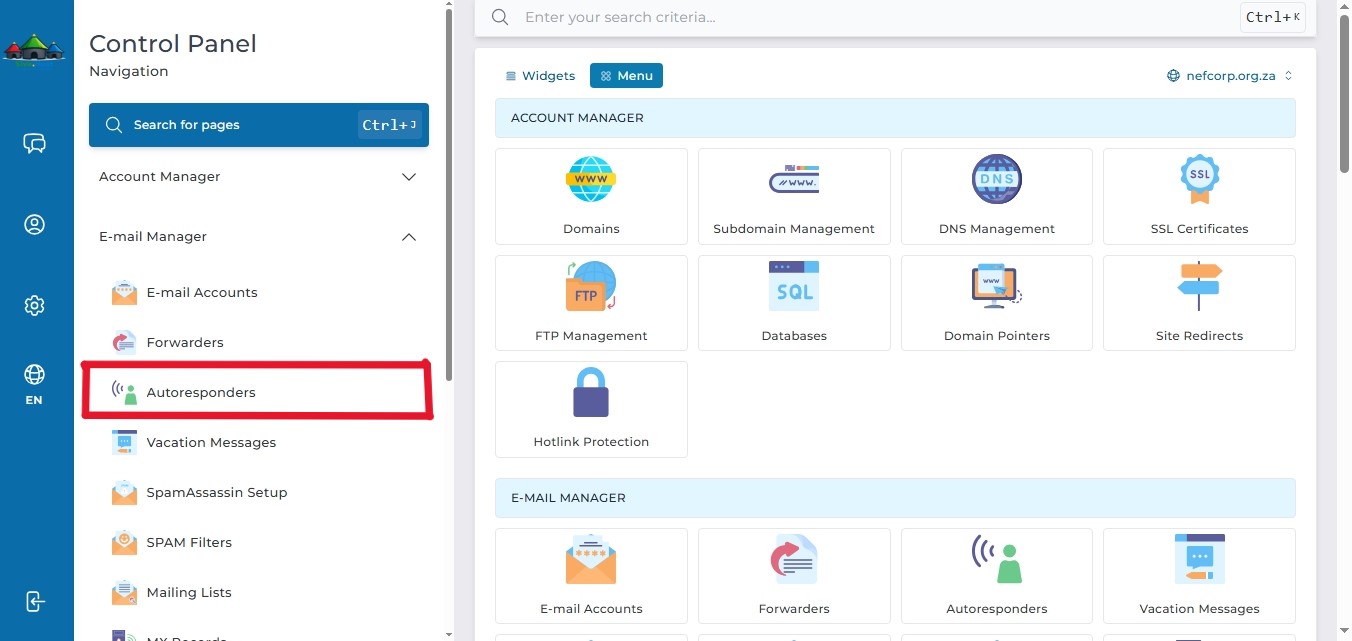
  2. In the left panel menu, click the dropdown arrow next to "Email Manager", then select "Autoresponder".Click Autoresponders..jpeg
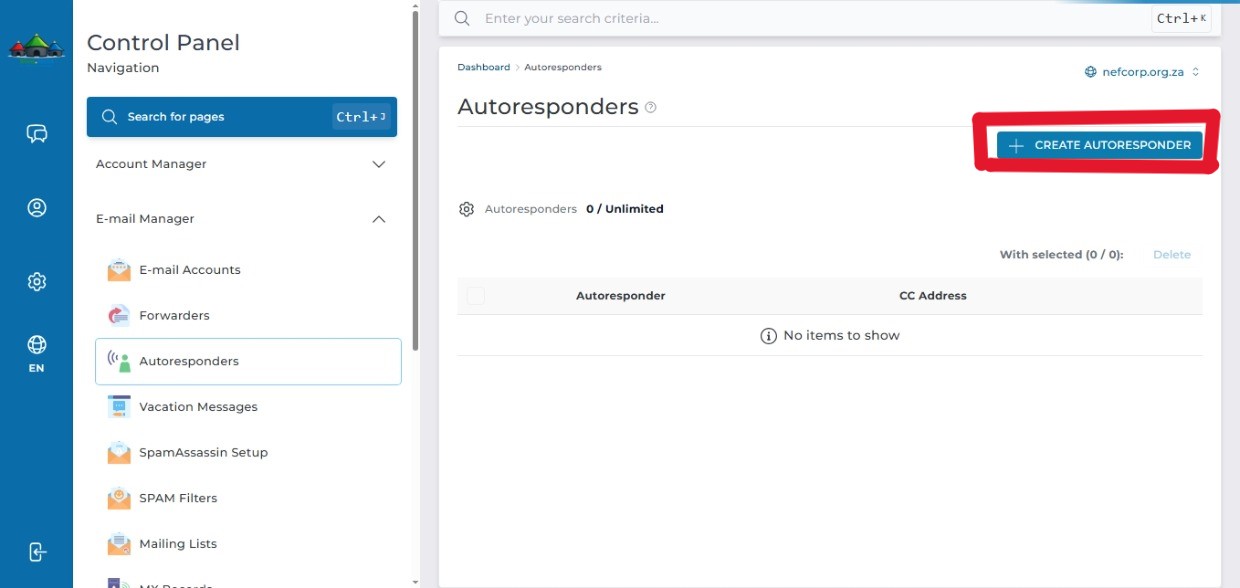
  3. Click "Create Autoresponder" on the right-hand side.Click Add Autoresponder.jpeg
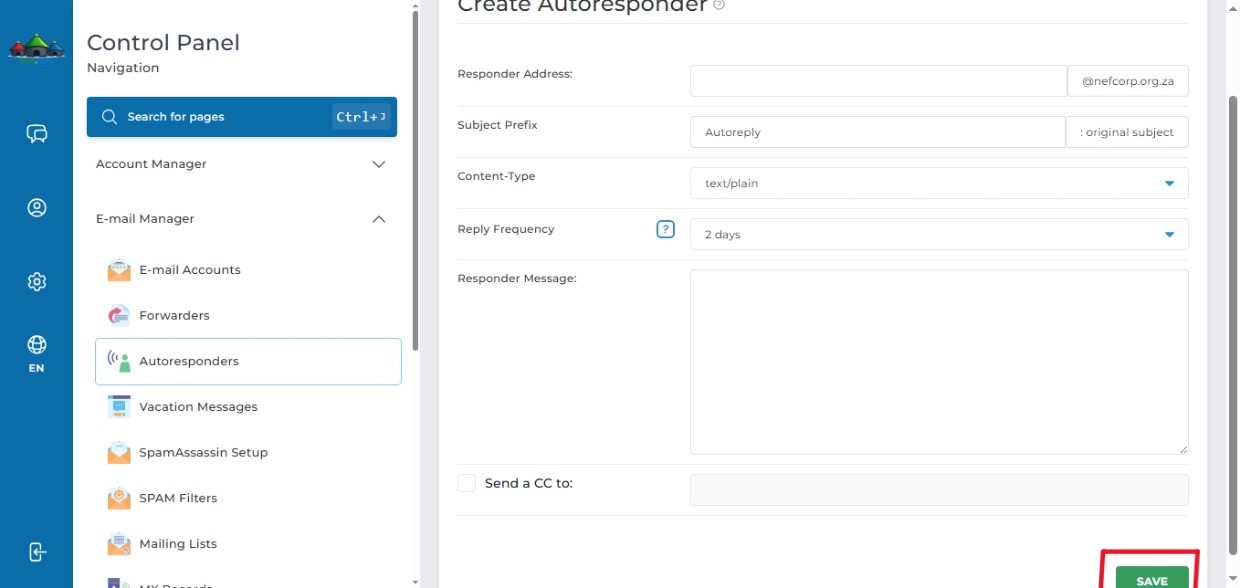
  4. Fill in the following details: 
    Respnder Address
    Subject prefix
    Content type
    Reply frequency
    Responder Message
    Save the autorespondSave_Autorespond.jpeg
  5. Your email account will appear under Autoresponders to show that it been successfully created.
    Click Modify to modify your Autoresponder (Optional) 
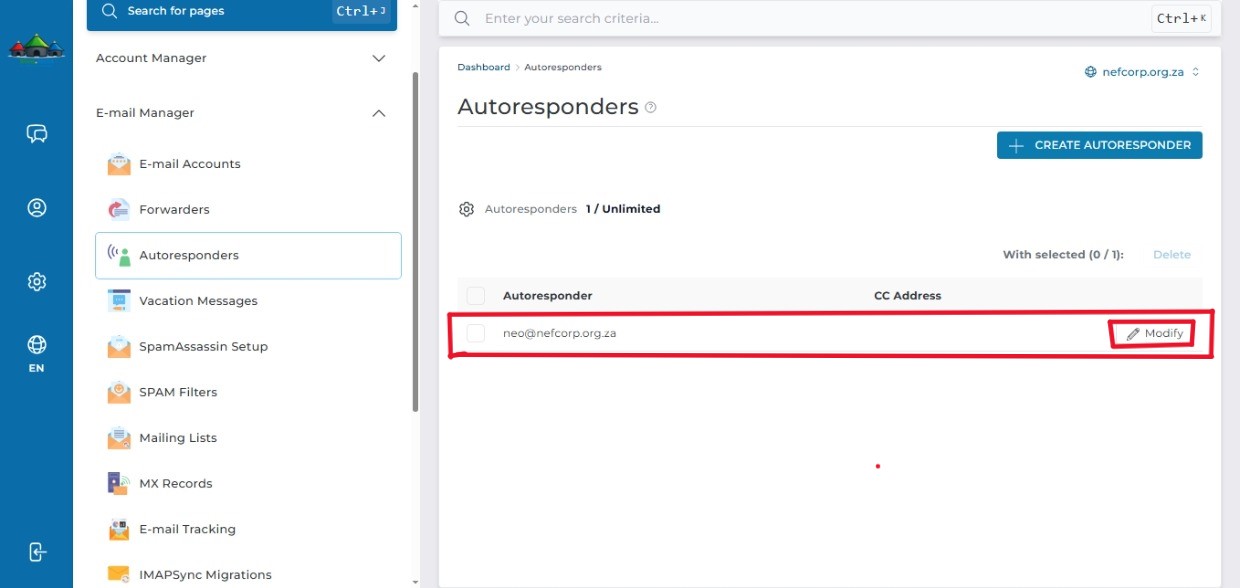
  6. Auto Responder List.jpeg
  • 0 Utilizadores acharam útil
Esta resposta foi útil?

Artigos Relacionados

How to Log in to DirectAdmin

After you place an order and make a successful payment, you will receive a welcome email...

How to Log Into DirectAdmin From the Client Area

How do I log into DirectAdmin We begin to login at the Portal Home. This is the Login Page for...

How to Create Emails in DirectAdmin

Creating an Email in DirectAdmin 1. Log in to DirectAdmin. 2. In the left panel menu, click the...

How to Change Your Email Password on DirectAdmin

Changing Your Email Account Password   1. Log in to DirectAdmin. 2. In the left panel menu,...

How to access/check Resource Usage in DirectAdmin

Resource Usage in DirectAdmin Step 1: Log in to DirectAdmin Open your DirectAdmin login URL...